Is your property truly protected 24/7? Secure what matters most with industry-grade surveillance.

Is your property truly protected 24/7? Secure what matters most with industry-grade surveillance.

A faulty camera or a blind spot can cost you more than just peace of mind. Whether you are setting up a brand-new surveillance network for your office, warehouse, or home—or dealing with unexpected video loss and wiring issues—ProNet IT Solutions delivers end-to-end reliability.

Our certified technical team handles everything from initial cabling and high-resolution camera placement to advanced network diagnostics.

What We Offer:

  • HD & IP Surveillance Setup: Clean conduit cabling, optimized camera angles, and high-definition clarity.
  • Storage & Network Configuration: NVR, DVR, and NAS setup with continuous cloud/local recording.
  • Remote Mobile Access: Real-time live streaming directly to your smartphone or tablet from anywhere in the world.
  • Prompt Repairs & Troubleshooting: Swift diagnostics for black screens, signal dropouts, power supply failures, and corrupted hard drives.
  • Preventive Maintenance: Routine camera alignment, firmware updates, and lens cleaning for commercial sites.

Why Choose ProNet IT Solutions?

  • Tailored security layout based on your exact premises
  • Neat, concealed wiring with zero compromise on interior aesthetics
  • Genuine hardware with dependable post-installation support
  • Transparent, upfront pricing with no hidden charges

Call to Action:

Schedule your site assessment or book a repair visit today:

Hashtags

  • Ad Objective: Leads (Instant Form) or Engagement (Send WhatsApp Message)
  • CTA Button: Contact Us or Send WhatsApp Message
  • Hashtags:#CCTVInstallation #SecuritySolutions #CCTVRepair #SurveillanceSystems #OfficeSecurity #HomeSafety #ProNetITSolutions #NetworkSecurity #IPCameras

Is your property truly protected 24/7? Secure what matters most with industry-grade surveillance.

Can We Set Up a Complete Network for Your Business?

Can We Set Up a Complete Network for Your Business?

Absolutely. A reliable business network is more than just connecting a few computers to the internet. Your network needs to support your employees, printers, CCTV cameras, servers, Wi-Fi devices, and other systems without constantly causing problems.

At ProNet IT Solutions, we first understand how your business works and what you actually need. Then we plan the network around your workplace instead of simply installing whatever equipment is available.

What Does a Complete Business Network Include?

Network Planning
We look at your office layout, number of users, devices, internet connection, and future requirements before deciding how the network should be designed.

Router & Switch Configuration
Properly configured networking equipment helps your devices communicate efficiently and keeps your business connection organized.

Network Security
Your business network should not be left open to unnecessary risks. We can configure appropriate security settings and access controls to help protect your systems and data.

Printers, CCTV & Shared Devices
We can connect network printers, CCTV systems, servers, and other devices so they can work smoothly within your business environment.

Server & Active Directory Integration
For businesses that need centralized user and computer management, we can configure servers and Active Directory to make access and administration easier.

What If Your Business Is Growing?

Your network should be able to grow with you. Adding employees, computers, CCTV cameras, printers, or other devices shouldn’t mean rebuilding everything from scratch.

That’s why we consider future expansion when planning your network.

A Network That Simply Works

You shouldn’t have to spend your day wondering why the Wi-Fi stopped working or why one computer can’t access the printer. A properly planned network gives your team a more stable environment and makes everyday IT management much easier.

ProNet IT Solutions can help you plan, install, configure, and maintain a business network built around your actual requirements.

Need a network for your business? Let’s talk about what you need.

Common Printer Problems in Offices, And How to Fix Them

Common Printer Problems in Offices — And How to Fix Them

Few things disrupt an office workflow quite like a printer that refuses to cooperate right before an important deadline. Despite being one of the most-used pieces of office equipment, printers are often the least understood — which means small, fixable issues frequently turn into bigger frustrations than they need to be.

Most printer problems fall into a handful of recurring categories. Understanding what causes them — and what can be checked before calling for support — can save an office a lot of unnecessary downtime.

1. Printer Not Responding or Offline

This is one of the most common complaints in any office, and it usually isn’t a sign that the printer itself is broken.

Common Causes:

  • Loose or disconnected network/USB cable
  • Printer not connected to the correct Wi-Fi network
  • Outdated or corrupted printer driver
  • Print spooler service stuck or frozen

What to Check:

  • Confirm the printer is powered on and connected to the network
  • Restart the printer and the computer sending the print job
  • Check if other devices on the network can print successfully — if not, it’s likely a network-wide issue rather than the printer itself

If the printer still shows offline after basic checks, the driver may need to be reinstalled or the network connection reconfigured.

2. Paper Jams

Paper jams are frustrating but usually preventable with a bit of regular maintenance.

Common Causes:

  • Worn-out or dirty paper rollers
  • Using paper that’s too thin, too thick, or damp
  • Overfilled paper tray
  • Torn paper fragments left inside from a previous jam

What to Check:

  • Remove jammed paper slowly and in the direction it naturally feeds, to avoid tearing
  • Fan the paper stack before loading to prevent sheets from sticking together
  • Clean the rollers periodically, especially in dusty office environments
  • Avoid overfilling the paper tray beyond its recommended capacity

Frequent jamming despite proper paper handling usually points to worn rollers that need replacing.

3. Slow Printing

A printer that used to print quickly but has gradually slowed down is a common complaint, especially in busy offices.

Common Causes:

  • Large print jobs or high-resolution documents
  • Outdated printer firmware
  • Too many print jobs queued at once
  • Network congestion for shared network printers

What to Check:

  • Clear the print queue if multiple jobs are stuck waiting
  • Update printer firmware and drivers to the latest version
  • For heavy daily use, consider whether the printer’s specifications actually match the office’s workload

Sometimes what looks like a “slow printer” is really a mismatch between the printer’s capacity and how much the office actually depends on it.

4. Poor Print Quality

Faded text, streaky pages, or uneven printing are usually signs of a hardware issue rather than a settings problem.

Common Causes:

  • Low or unevenly distributed toner/ink
  • Dirty print head or drum unit
  • Using incompatible or low-quality cartridges
  • Print head misalignment

What to Check:

  • Run the printer’s built-in cleaning cycle (available in most printer settings/software)
  • Check toner or ink levels and replace if low
  • Ensure cartridges are genuine or high-quality compatible parts, as cheap alternatives often cause quality issues

If print quality remains poor after cleaning and cartridge replacement, the print head or drum unit itself may need professional attention.

5. Printer Not Found on Network

For offices using shared network printers, this is a particularly common issue when a new device tries to connect.

Common Causes:

  • Printer and computer on different network segments
  • Firewall or security software blocking discovery
  • Incorrect IP address configuration
  • Printer sleep mode causing temporary disconnection

What to Check:

  • Confirm the printer and the connecting device are on the same network
  • Print a network configuration page from the printer to verify its current IP address
  • Temporarily disable firewall/antivirus to test if it’s blocking discovery (re-enable afterward)

Offices with multiple printers and shared access often benefit from a static IP setup, which prevents printers from changing addresses and becoming undiscoverable after a restart.

When to Call for Professional Support

Basic troubleshooting resolves many everyday printer issues, but certain signs suggest it’s time to bring in professional support rather than continuing to troubleshoot manually:

  • The same problem keeps recurring despite fixes
  • Unusual noises during printing
  • Visible damage to internal components
  • Network printer issues affecting multiple users across the office

Recurring problems are often a symptom of a larger underlying issue — worn hardware, outdated infrastructure, or incorrect network configuration — that a quick fix won’t solve long-term.

Final Thoughts

Printer issues are rarely as mysterious as they seem — most stem from a small set of recurring causes that are fairly straightforward to diagnose once you know what to look for. Regular maintenance, proper paper handling, and keeping drivers/firmware updated go a long way in preventing the majority of everyday printer headaches.

For offices where printer downtime consistently disrupts work, a proper technical assessment can identify whether the issue is a quick fix or a sign that the setup needs an upgrade.

Why Small Businesses Need Professional IT Support in 2026

Why Small Businesses Need Professional IT Support in 2026

Technology is no longer optional for most small businesses.

Even a small office may depend on computers, internet connectivity, Wi-Fi, printers, cloud applications, business software, email, online services, and digital files every day. When these systems work properly, employees can focus on customers and business operations. When they fail, productivity can quickly come to a stop.

For many small businesses, the challenge is not simply having technology. The bigger challenge is managing that technology properly.

This is where professional IT support for small businesses can make a difference.

A reliable IT support provider can help businesses troubleshoot technical problems, maintain their systems, improve security, protect important data, and plan for future technology requirements.

In this guide, we explain why professional IT support can be valuable for small businesses and what to consider when deciding whether your company needs an IT support partner.

What Is Small Business IT Support?

Small business IT support refers to technical services designed to help a company manage its technology infrastructure.

Depending on the business and provider, IT support can cover areas such as:

  • Computer and laptop troubleshooting
  • Network and Wi-Fi support
  • Hardware installation
  • Software configuration
  • Server support
  • Data backup
  • Cybersecurity
  • Cloud technology
  • User and account management
  • System maintenance
  • Technical consulting
  • Disaster recovery planning

The exact services a business needs depend on its size, industry, employees, technology environment, and budget.

A small company with five employees may have very different requirements from a company with fifty employees.

Why Technology Matters to Small Businesses

Small businesses often operate with limited resources.

Employees may perform multiple roles, and there may not be a dedicated person responsible for technology.

As a result, a technical problem can affect several parts of the organization at the same time.

For example, imagine a business where employees depend on an internet connection to access cloud applications.

If the network stops working, employees may be unable to access important systems. If the problem takes several hours to resolve, the business can lose valuable working time.

Professional IT support can help businesses manage these risks more effectively.

10 Reasons Small Businesses Need Professional IT Support

1. Reduce Technology-Related Downtime

One of the biggest advantages of professional IT support is faster troubleshooting.

Technical problems can range from simple issues such as a printer not working to more complicated problems involving networks, servers, applications, or security.

Without technical expertise, employees may spend hours trying to identify the cause of a problem.

An IT support provider can investigate the issue systematically and work toward an appropriate solution.

Reducing downtime allows employees to spend more time on their actual responsibilities.

2. Improve Business Cybersecurity

Cybersecurity is important for businesses of every size.

Many small businesses assume that cybercriminals only target large organizations. In reality, smaller organizations can also face cybersecurity risks.

Common threats include:

  • Phishing emails
  • Malware
  • Weak passwords
  • Unauthorized access
  • Outdated software
  • Compromised accounts
  • Unsafe devices
  • Data loss

Professional IT support can help businesses identify weaknesses and implement appropriate security measures.

Security should not be treated as something that only becomes important after an incident occurs.

3. Protect Important Business Data

Business data can include customer information, invoices, contracts, financial documents, employee records, project files, and other important information.

Losing this data can create serious operational problems.

Data can disappear because of accidental deletion, hardware failure, software problems, security incidents, or other unexpected events.

A professional IT provider can help businesses establish appropriate backup and recovery procedures.

The goal is not simply to create backups but also to make sure that important information can be recovered when necessary.

4. Keep Computers and Systems Maintained

Technology requires regular maintenance.

Computers and network devices need software updates, security patches, configuration checks, storage management, and troubleshooting.

Without proper maintenance, small problems can gradually become larger problems.

For example, an outdated system may continue operating normally for months before a compatibility or security issue suddenly appears.

Regular maintenance can help create a more stable technology environment.

5. Get Technical Expertise Without Hiring a Full-Time IT Team

Hiring a full-time IT employee may not be practical for every small business.

A company may only need technical assistance for a few hours or specific projects each month.

Working with an external IT support company can provide access to technical expertise without necessarily requiring a full internal IT department.

This can be especially useful for businesses that are growing but are not yet ready to build a large internal technology team.

6. Solve Problems More Efficiently

Employees are generally hired to perform specific business functions.

If an employee spends several hours trying to troubleshoot a network or computer problem, that time is no longer being spent on their primary responsibilities.

Professional IT support allows technical issues to be handled by people with relevant expertise.

This can improve productivity and reduce the amount of time employees spend dealing with technology problems.

7. Support Remote and Hybrid Employees

Many businesses now use a combination of office-based and remote work.

This creates additional IT requirements.

Employees may need secure access to company systems, reliable communication tools, cloud applications, VPNs, file-sharing platforms, and properly configured devices.

An IT support provider can help businesses manage these technical requirements and troubleshoot problems affecting remote workers.

8. Plan Technology Purchases Properly

Buying technology simply because it looks powerful or inexpensive can lead to unnecessary expenses.

For example, a business may purchase computers with specifications that do not match its actual workload.

An IT professional can help businesses evaluate their requirements before purchasing hardware or software.

This may include considering:

  • Number of employees
  • Required applications
  • Storage requirements
  • Network capacity
  • Security requirements
  • Future growth
  • Compatibility

Good technology planning can help businesses spend their IT budget more effectively.

9. Make Business Growth Easier

Technology requirements usually increase as a company grows.

A business that starts with a few employees may eventually need:

  • More computers
  • Additional network devices
  • Better Wi-Fi coverage
  • More user accounts
  • Additional software
  • Improved security
  • Larger storage capacity
  • Cloud services
  • New office infrastructure

Having an IT support partner can make these transitions easier to plan.

Instead of reacting to technology problems after they occur, businesses can plan their infrastructure around future requirements.

10. Get Professional Advice

Technology decisions can be confusing.

There are thousands of hardware products, software applications, cloud services, security tools, and networking technologies available.

A professional IT provider can help businesses evaluate these options based on actual requirements.

The goal should not be to buy the most expensive technology.

The goal should be to choose technology that provides appropriate functionality, reliability, security, and value.

Signs Your Small Business May Need IT Support

Not every small business needs the same level of IT support.

However, several warning signs can indicate that external IT assistance would be useful.

Your Employees Frequently Experience Computer Problems

If employees regularly experience slow computers, application crashes, network problems, or other technical issues, it may be time to review your IT environment.

Your Business Has No Reliable Backup Strategy

If you are unsure whether your important files are backed up or whether those backups can actually be restored, this should be addressed.

Nobody Is Responsible for Cybersecurity

If there is no clear person responsible for software updates, account security, access controls, backups, and other security practices, your business may have unnecessary technology risks.

Technology Problems Keep Interrupting Work

If employees frequently stop working to troubleshoot technical problems, the business may benefit from professional IT support.

Your Business Is Growing Quickly

Growth can expose weaknesses in existing IT infrastructure.

Adding employees, devices, applications, and locations without proper planning can create network, security, and management problems.

You Are Planning a New Office

Opening or moving an office often requires careful planning for networking, Wi-Fi, internet connectivity, computers, printers, security, and other technology systems.

Professional assistance can help prevent expensive mistakes during the setup process.

What Services Should a Small Business Look For?

When evaluating an IT support provider, consider whether its services match your actual needs.

Depending on your business, you may want access to:

Computer Support

Technical assistance for desktops, laptops, operating systems, applications, and peripherals.

Network Support

Installation, configuration, troubleshooting, and maintenance of business networks and Wi-Fi.

Cybersecurity Support

Security assessments, endpoint protection, access management, updates, and other appropriate security measures.

Backup and Recovery

Solutions designed to protect important business data and support recovery when data becomes unavailable.

Cloud Support

Assistance with cloud-based applications, storage, collaboration systems, and other cloud technologies.

IT Consulting

Technology planning and recommendations for businesses making larger IT decisions.

Not every business needs every service.

The important thing is to identify your requirements and choose a provider accordingly.

In-House IT vs. Outsourced IT Support

Small businesses often ask whether they should hire an internal IT employee or outsource IT support.

There is no universal answer.

In-House IT

An internal employee can provide dedicated support and may develop a deep understanding of the company’s systems.

However, hiring an IT professional also involves salary, benefits, equipment, training, and other employment costs.

One person may also have limited expertise across every area of modern technology.

Outsourced IT Support

An external IT provider can give a business access to technical expertise without necessarily requiring a full-time IT department.

Depending on the provider, a business may have access to specialists in networking, cybersecurity, cloud technology, hardware, and other areas.

For many small businesses, outsourcing can be a practical way to access IT expertise while keeping internal resources focused on core business activities.

How Much Does Small Business IT Support Cost?

There is no single price for IT support.

The cost depends on factors such as:

  • Number of employees
  • Number of devices
  • Required services
  • Network complexity
  • Security requirements
  • Support hours
  • On-site requirements
  • Existing infrastructure
  • Service model

Some IT providers charge hourly or per support request, while others offer monthly managed IT packages.

When comparing prices, look beyond the monthly number.

Ask what is included and whether there are additional charges for emergency support, on-site visits, hardware, software, or other services.

A transparent pricing model makes it easier to understand the actual cost of IT support.

How to Choose the Right IT Support Provider

Choosing an IT provider should be treated as a business decision rather than simply looking for the cheapest technician.

Consider these factors:

Experience

Does the provider understand businesses similar to yours?

Services

Can the provider support your current technology requirements?

Response Time

How quickly does it respond when something goes wrong?

Security

Does the provider take cybersecurity and data protection seriously?

Communication

Can technical problems be explained clearly?

Scalability

Can the provider continue supporting your business as it grows?

Pricing

Are costs clear and easy to understand?

Support Model

Does the provider offer the level of proactive or reactive support your business needs?

For a more detailed comparison, see our guide on [How to Choose the Right IT Support Company for Your Business in 2026].

How Professional IT Support Can Help Your Business Grow

IT should not be viewed only as an expense.

When technology is properly managed, it can support productivity, communication, security, and business growth.

For example, a growing business may need to add ten new employees.

That growth could require new computers, user accounts, network capacity, software licenses, security controls, and additional support.

With proper IT planning, these requirements can be handled systematically rather than becoming a collection of last-minute problems.

A reliable IT support partner can help the business think ahead.

Common Mistakes Small Businesses Make With IT

Small businesses can make several common technology mistakes.

Using Outdated Software

Old software may create compatibility and security problems.

Ignoring Backups

Assuming that important data is safe without testing backups can create serious risks.

Using Weak Password Practices

Shared or easily guessed passwords can increase the risk of unauthorized access.

Buying Technology Without Planning

Purchasing hardware without considering business requirements can waste money.

Waiting Until Something Breaks

Only reacting to problems can make technology management more expensive and disruptive.

Giving Everyone Too Much Access

Employees should generally have access appropriate to their responsibilities rather than unrestricted access to every system.

A Simple IT Checklist for Small Businesses

Use this checklist to review your current IT environment:

  • Business computers are regularly maintained
  • Important software is kept updated
  • Important business data is backed up
  • Backups are tested periodically
  • Employees use appropriate password practices
  • Important accounts have additional security controls where appropriate
  • Network equipment is properly configured
  • Wi-Fi is secure
  • Employee access is reviewed
  • Former employees’ access is removed
  • Important technology has a recovery plan
  • Someone is responsible for IT management
  • Technology purchases are planned
  • IT problems are documented and tracked

If several items on this checklist are missing, it may be worth speaking with an IT professional.

Final Thoughts

Professional IT support can provide significant value to small businesses.

It can help reduce downtime, improve technology reliability, strengthen security practices, protect important data, and give employees access to technical assistance when they need it.

However, the right IT support strategy depends on the individual business.

A five-person company may need a very different solution from a fifty-person organization.

Before choosing an IT provider, assess your current technology environment, identify your biggest problems, and determine what support your business actually requires.

The goal should not simply be to find someone who can fix computers.

The goal should be to find a reliable technology partner that can help your business operate efficiently today and prepare for future growth.

Frequently Asked Questions

1. Why does a small business need IT support?

Small businesses depend on technology for communication, productivity, data management, and daily operations. Professional IT support can help maintain systems, troubleshoot problems, improve security, and reduce downtime.

2. Is IT support expensive for small businesses?

The cost varies depending on the business’s size, infrastructure, services, and support requirements. Some providers offer monthly packages, while others charge based on usage or individual services.

3. Can a small business outsource IT support?

Yes. Outsourcing IT support can provide access to technical expertise without requiring the business to maintain a full-time internal IT department.

4. What is included in small business IT support?

Services vary by provider but can include computer support, networking, cybersecurity, backups, cloud support, maintenance, troubleshooting, and IT consulting.

5. When should a small business hire an IT support company?

A business may benefit from professional IT support when technical problems regularly interrupt work, cybersecurity becomes a concern, the company is growing, data backups are unreliable, or internal employees cannot effectively manage IT requirements.

6. Is outsourced IT better than hiring an IT employee?

It depends on the business. Outsourcing can provide access to a broader range of technical expertise, while an internal employee can provide dedicated day-to-day support. Businesses should compare both approaches based on their requirements and budget.

7. How can IT support improve cybersecurity?

An IT provider can help businesses identify security weaknesses and implement appropriate measures involving software updates, endpoint security, access controls, passwords, backups, monitoring, and employee awareness.

8. Does every small business need managed IT services?

No. Businesses have different requirements. Some may only need occasional technical support, while others may benefit from ongoing monitoring, maintenance, and management.

9. What should I look for in a small business IT provider?

Consider experience, technical expertise, services, response time, security practices, pricing transparency, communication, and the provider’s ability to support your business as it grows.

10. Can IT support help a growing business?

Yes. IT support can help businesses plan for additional employees, devices, networks, software, security requirements, and other technology needs as the company grows.

Need Professional IT Support?

Managing business technology can become increasingly difficult as your company grows.

If you need help understanding your IT requirements, maintaining your technology environment, or planning your next technology upgrade, Pro Net IT Solutions can be part of your evaluation when comparing professional IT support providers.

Contact Pro Net IT Solutions to discuss your business technology requirements and determine which IT solutions may be appropriate for your organization.


How to Choose the Right IT Support Company for Your Business in 2026

How to Choose the Right IT Support Company for Your Business in 2026

Technology plays a central role in almost every modern business. Employees depend on computers, internet connections, business applications, cloud platforms, networks, printers, communication systems, and digital data to complete their daily work.

When everything works properly, technology can help a business operate efficiently. But when a network suddenly stops working, a computer becomes unusably slow, important files cannot be accessed, or a security problem affects the business, even a relatively small IT issue can quickly become expensive.

For this reason, choosing the right IT support company is an important decision for businesses of every size.

The right IT provider should do more than fix computers when something goes wrong. Ideally, it should help your business maintain reliable technology, reduce downtime, improve security, and plan for future technology requirements.

In this guide, we explain the most important factors to consider when choosing an IT support company in 2026.

What Is an IT Support Company?

An IT support company provides technical assistance and technology-related services to businesses and organizations.

Depending on the provider and the business’s requirements, IT support may include:

  • Computer and laptop troubleshooting
  • Network installation and maintenance
  • Server support
  • Internet and Wi-Fi troubleshooting
  • Software installation and configuration
  • Cybersecurity assistance
  • Data backup solutions
  • Cloud technology support
  • Hardware support
  • IT consulting
  • System monitoring and maintenance
  • Disaster recovery planning

Some companies provide support only when a problem occurs, while others offer ongoing managed IT services designed to identify and prevent problems before they cause significant disruption.

Before choosing a provider, it is important to understand what your business actually needs.

Why Does Your Business Need Professional IT Support?

Some businesses try to manage all technology internally. This can work when the business is very small and its IT requirements are simple.

However, technology becomes increasingly difficult to manage as a company grows.

More employees may mean more computers, phones, network devices, accounts, applications, and security requirements. A business may also need better backups, improved Wi-Fi coverage, stronger security controls, and reliable systems for remote employees.

Professional IT support can help businesses manage these requirements more efficiently.

Reduce Business Downtime

When an important technology system stops working, employees may be unable to perform their jobs.

For example, a network outage can prevent employees from accessing shared resources, cloud applications, printers, or other business systems.

A responsive IT support provider can help diagnose technical problems and restore services as quickly as possible.

Improve Technology Security

Cybersecurity is another important reason to work with an experienced IT provider.

Businesses can face risks from phishing emails, malware, compromised passwords, unauthorized access, outdated software, and other security weaknesses.

An IT provider can help businesses establish stronger security practices and identify areas that require improvement.

Make Technology More Reliable

IT support is not only about fixing problems.

Regular maintenance, monitoring, updates, backups, and proper configuration can help create a more stable technology environment.

Support Business Growth

Technology requirements often change as a business grows.

A company opening a new office may need a new network. A growing team may require additional devices and user accounts. A business adopting cloud applications may need help configuring and securing those systems.

A good IT partner should be able to adapt as these requirements change.

8 Factors to Consider When Choosing an IT Support Company

There are many IT providers available, but they are not all the same. Before signing an agreement, compare providers using several factors rather than choosing based on price alone.

1. Experience and Technical Expertise

Start by looking at the provider’s experience.

Ask whether the company has experience supporting businesses similar to yours.

Different organizations can have very different technology requirements. A small office, retail business, professional services company, school, or larger organization may require different types of IT infrastructure.

You should also consider whether the provider has experience with the technologies your business uses.

Ask questions such as:

  • What types of businesses do you support?
  • What technologies do you work with?
  • Can you support our existing infrastructure?
  • Do you provide both remote and on-site assistance?
  • How do you handle complex technical problems?

A provider should be able to clearly explain how its experience can benefit your organization.

2. Range of IT Support Services

Consider whether the provider can support your current and future requirements.

For example, you may initially need help with computers and networking. Later, you may require cybersecurity, backup, cloud support, or disaster recovery services.

Working with a provider capable of handling multiple IT requirements can make technology management simpler.

However, do not choose a provider simply because it lists a large number of services.

Look at the quality, experience, and relevance of those services to your business.

3. Response Time and Availability

When technology stops working, response time matters.

Before choosing an IT support company, find out how support requests are handled.

Important questions include:

  • How can customers contact support?
  • What is the expected response time?
  • Is emergency support available?
  • Is remote support available?
  • Is on-site assistance available when necessary?
  • Are support requests tracked through a ticketing system?

Make sure the provider’s support commitments are clearly explained before you sign a contract.

A company that promises fast support but does not clearly define its service process may not provide the level of reliability your business requires.

4. Proactive vs. Reactive IT Support

One of the most important differences between IT providers is whether they take a proactive or reactive approach.

Reactive IT Support

Reactive support means the business contacts the IT provider after a problem occurs.

For example:

The internet stopped working, so the company calls its IT provider.

This model may be suitable for businesses with limited technology requirements.

Proactive IT Support

Proactive IT support focuses on preventing problems before they become major disruptions.

Depending on the service, this may involve:

  • System monitoring
  • Software updates
  • Security checks
  • Backup monitoring
  • Device maintenance
  • Network monitoring
  • Identifying potential failures

For businesses that depend heavily on technology, proactive maintenance can be an important part of a long-term IT strategy.

5. Cybersecurity Approach

Security should be one of the first topics you discuss with an IT provider.

Ask how the company approaches cybersecurity and what measures it recommends for businesses.

Potential areas include:

  • Endpoint protection
  • Network security
  • Password management
  • Access controls
  • Software updates
  • Employee security awareness
  • Backup protection
  • Monitoring
  • Security incident response

You should also ask how the provider handles access to your systems and business information.

An IT company may have significant access to your technology environment, so trust, security practices, and clear processes are extremely important.

6. Backup and Disaster Recovery

Backups are essential because hardware can fail, files can be accidentally deleted, and businesses can experience security incidents or other unexpected events.

Ask potential IT providers:

  • How should our business data be backed up?
  • How frequently should backups occur?
  • How are backups protected?
  • How is backup recovery tested?
  • What happens if a critical system becomes unavailable?

A backup that cannot be successfully restored is not a reliable recovery strategy.

For this reason, businesses should consider both backup procedures and disaster recovery planning.

7. Transparent Pricing

Cost is obviously important, but the cheapest IT provider is not necessarily the best option.

IT companies may use different pricing models.

Some provide monthly managed IT packages, while others charge hourly or per support request.

Before signing an agreement, ask about:

  • Monthly fees
  • Included services
  • Additional support charges
  • Emergency support costs
  • On-site support fees
  • Hardware and software costs
  • Licensing
  • Contract duration
  • Cancellation terms

A clear pricing structure makes it easier to calculate the actual cost of IT support.

8. Communication and Customer Service

Technical knowledge is important, but communication is equally valuable.

A good IT support company should be able to explain technical issues in language that business owners and employees can understand.

For example, instead of simply saying that a network has a configuration problem, the provider should explain:

  • What happened
  • Why it happened
  • What impact it has
  • What solution is recommended
  • How long the solution may take
  • Whether the problem could happen again

Good communication helps businesses make better technology decisions.

Managed IT Services vs. On-Demand IT Support

One of the decisions businesses may face is whether to use managed IT services or on-demand support.

On-Demand IT Support

With on-demand support, you contact an IT provider when you experience a technical problem.

This approach may be suitable for businesses with simple technology requirements or organizations that only occasionally need external technical assistance.

The potential disadvantage is that problems may only be addressed after they have already affected employees.

Managed IT Services

Managed IT services generally involve ongoing technology management.

Depending on the provider and package, services may include monitoring, maintenance, updates, security management, backups, technical support, and IT planning.

This approach can be useful for businesses that depend heavily on their technology infrastructure and want more predictable ongoing support.

The best choice depends on your business size, technology requirements, budget, and risk tolerance.

Questions to Ask Before Hiring an IT Support Company

Before making your final decision, prepare a list of questions.

Here are some useful ones:

  1. How long have you been providing IT support?
  2. Do you have experience supporting businesses similar to ours?
  3. What IT services do you provide?
  4. What is your average response process for support requests?
  5. Do you provide emergency support?
  6. Do you offer remote and on-site support?
  7. How do you approach cybersecurity?
  8. How do you manage business backups?
  9. Do you provide proactive monitoring and maintenance?
  10. What pricing model do you use?
  11. What services are included in the monthly fee?
  12. Are there additional charges?
  13. How do you handle technology problems outside normal business hours?
  14. Can your services scale as our business grows?
  15. What happens if we decide to change providers?

The answers can help you compare providers objectively.

Red Flags to Watch For

While comparing IT companies, pay attention to potential warning signs.

Unclear Pricing

If a provider cannot explain what you are paying for, you may encounter unexpected costs later.

No Clear Support Process

A professional provider should have a defined process for receiving, prioritizing, and resolving support requests.

Poor Communication

If technical information is consistently difficult to understand or support requests are ignored, this may become a problem later.

No Focus on Security

An IT provider should understand that cybersecurity is an important part of modern business technology.

Only Fixing Problems After They Happen

For businesses that rely heavily on technology, a completely reactive approach may leave important risks unidentified.

Should You Choose a Local IT Support Company?

For many businesses, having access to a local IT provider can be useful, particularly when on-site assistance is required.

A local provider may be able to visit your office when a problem cannot be resolved remotely.

However, location should not be the only consideration.

You should also evaluate technical expertise, response time, security practices, service quality, pricing, and reputation.

The best IT support company is one that fits your actual business requirements.

How to Compare IT Support Companies

A simple comparison process can make your decision easier.

Create a shortlist of several providers and compare them across:

FactorWhat to Look For
ExperienceRelevant business and technical experience
ServicesServices that match your requirements
ResponseClear support and response process
SecurityPractical cybersecurity approach
BackupReliable backup and recovery strategy
PricingTransparent and understandable costs
ScalabilityAbility to support future growth
CommunicationClear and responsive customer service

Do not automatically select the company with the lowest price.

Instead, consider the overall value, reliability, expertise, and level of support you are receiving.

Final Thoughts

Choosing the right IT support company can have a significant impact on your business’s technology reliability, security, and productivity.

The right provider should understand your business requirements and offer appropriate technical support rather than simply fixing problems when they occur.

Before choosing an IT partner, evaluate its experience, range of services, response process, cybersecurity approach, backup strategy, pricing, communication, and ability to support your future growth.

Most importantly, choose an IT support company that you can trust with your business technology.

A strong IT support relationship can help your business maintain more reliable systems today while preparing for the technology requirements of tomorrow.

Frequently Asked Questions

1. What does an IT support company do?

An IT support company helps businesses manage and troubleshoot technology systems. Services can include computer support, networking, cybersecurity, backups, cloud services, system maintenance, and IT consulting.

2. How much does IT support cost for a small business?

The cost varies depending on the number of users and devices, services required, support model, infrastructure, and provider. Businesses should compare the total service package rather than looking only at the advertised monthly price.

3. What is managed IT support?

Managed IT support is an ongoing approach to technology management. Depending on the provider, it can include monitoring, maintenance, technical support, security, backups, and other IT services.

4. Is managed IT support better than on-demand support?

It depends on the business. On-demand support can be suitable for companies with limited IT needs, while managed support may be more appropriate for businesses that depend heavily on technology and want ongoing maintenance and monitoring.

5. Should a small business hire an IT support company?

A small business can benefit from professional IT support when its technology becomes too complex to manage internally or when downtime, cybersecurity, backups, and reliability become important concerns.

6. What should I ask an IT support company before hiring them?

Ask about their experience, services, response times, cybersecurity practices, backup strategy, pricing, support availability, contract terms, and experience with businesses similar to yours.

7. Why is cybersecurity important for businesses?

Businesses store and process valuable information and rely on connected technology. Weak security can increase the risk of unauthorized access, malware, phishing, data loss, and operational disruption.

8. What is proactive IT support?

Proactive IT support focuses on identifying and addressing potential technology problems before they cause significant disruption. It may involve monitoring, maintenance, updates, backups, and security checks.

9. What is the difference between IT support and IT consulting?

IT support generally focuses on maintaining and troubleshooting existing technology. IT consulting is often more focused on planning, strategy, technology selection, infrastructure improvements, and long-term business goals.

10. How do I choose the best IT support company?

Compare providers based on relevant experience, services, response times, security practices, backup capabilities, pricing transparency, communication, and ability to support your business as it grows.

Ready to Improve Your Business IT?

Choosing an IT support partner is an important decision. The right provider can help your business maintain reliable technology, address technical problems efficiently, and plan for future IT requirements.

If your business is looking for professional technology support, Pro Net IT Solutions can be considered as part of your evaluation process.

Get in touch with the Pro Net IT Solutions team to discuss your business technology requirements and determine which IT solutions may be appropriate for your organization.
How to Speed Up a Slow Laptop: 15 Practical Ways to Improve Performance

A slow laptop can make even simple tasks frustrating. Programs take longer to open, websites may lag, and switching between applications can become difficult. The good news is that you do not always need to buy a new laptop to improve its performance.

In many cases, a few changes to your Windows settings, storage, startup programs, and hardware can make a noticeable difference.

In this guide, we will explain 15 practical ways to speed up a slow laptop and help it run more smoothly.

Why Does a Laptop Become Slow?

There can be several reasons why a laptop becomes slower over time. Common causes include:

  • Too many programs running in the background
  • Too many startup applications
  • Low available storage
  • Malware or unwanted software
  • Outdated Windows or drivers
  • Insufficient RAM
  • An old mechanical hard drive
  • Overheating
  • Too many browser tabs and extensions

Before upgrading your hardware, it is worth trying the software-based solutions below.

1. Restart Your Laptop

It sounds simple, but restarting your laptop can solve temporary performance problems.

When your computer stays on for a long time, background processes and applications can consume memory and system resources. A restart closes these processes and gives Windows a fresh start.

If your laptop has become unusually slow, restart it before trying more complicated solutions.

2. Disable Unnecessary Startup Programs

Some applications automatically start every time Windows boots. Too many startup applications can increase boot time and consume system resources.

How to disable startup apps in Windows 11

  1. Press Ctrl + Shift + Esc to open Task Manager.
  2. Select Startup apps.
  3. Review the applications listed there.
  4. Right-click applications you do not need at startup.
  5. Select Disable.

Do not disable essential Windows components or software that you know your computer needs.

3. Uninstall Programs You Don’t Use

Unused applications take up storage space and some may continue running background services.

Open:

Settings → Apps → Installed apps

Review the applications installed on your laptop and remove programs you no longer need.

Be careful when uninstalling software. If you do not recognize an application, research it before removing it.

4. Free Up Storage Space

A nearly full drive can contribute to poor system performance and leave Windows with less room for temporary files and updates.

You can use Windows’ built-in storage management tools to remove unnecessary files.

Go to:

Settings → System → Storage

Review temporary files, large files, unused applications, and other categories consuming disk space.

Try to keep a reasonable amount of free space available on your main Windows drive.

5. Keep Windows Updated

Windows updates can include security improvements, bug fixes, and performance-related changes.

To check for updates:

Settings → Windows Update → Check for updates

Install available updates and restart your computer if Windows asks you to do so.

You should also keep important device drivers updated, particularly graphics and chipset drivers.

6. Scan Your Laptop for Malware

Malware can consume CPU, memory, network bandwidth, and storage resources.

If your laptop suddenly becomes slow, frequently displays unwanted pop-ups, or behaves unusually, perform a security scan.

Windows Security provides built-in protection for Windows users. Open:

Windows Security → Virus & threat protection

Run a scan and follow the recommendations provided by Windows.

Avoid downloading suspicious “PC cleaner” or “speed booster” programs. Some of these applications provide little benefit and may create additional problems.

7. Reduce the Number of Browser Tabs

Modern browsers can use significant amounts of RAM, especially when you have dozens of tabs open.

If your laptop has limited memory, close tabs you are not currently using.

You can also remove browser extensions that you no longer need.

If your browser is consuming a large amount of memory, check its built-in task manager to identify which tabs or extensions are using the most resources.

8. Reduce Unnecessary Background Apps

Some applications continue running even when you are not actively using them.

Review which applications are allowed to run in the background and disable unnecessary ones where appropriate.

This can help reduce memory and CPU usage, particularly on laptops with limited hardware.

9. Check Your Laptop’s CPU and RAM Usage

Windows Task Manager can help you identify what is making your laptop slow.

Press:

Ctrl + Shift + Esc

Then check the Processes and Performance sections.

Look for unusually high:

  • CPU usage
  • Memory usage
  • Disk usage
  • GPU usage

If one application consistently consumes a large percentage of your resources, investigate that application before making major system changes.

10. Change Windows Visual Effects

Windows includes animations and visual effects that can use system resources.

On older computers, reducing these effects may make the interface feel more responsive.

Search Windows for:

Adjust the appearance and performance of Windows

Then select the option to adjust visual effects and choose settings that prioritize performance.

The improvement may be small on modern computers, but it can help older hardware.

11. Check for Overheating

Overheating can cause a laptop to reduce its performance in order to protect the hardware.

If your laptop becomes extremely hot, the fan constantly runs at high speed, or performance drops after extended use, overheating could be a factor.

Make sure:

  • Air vents are not blocked
  • The laptop is used on a hard, flat surface
  • Dust is removed from ventilation areas
  • Cooling fans are working properly

If the laptop has significant dust buildup internally, professional cleaning may be appropriate.

12. Upgrade Your RAM

If your laptop frequently runs out of memory, upgrading RAM can improve multitasking performance.

For example, if you regularly use a browser with many tabs, video-editing software, office applications, and other programs at the same time, additional RAM may help.

Before purchasing RAM, check your laptop’s specifications to determine:

  • Maximum supported RAM
  • RAM type
  • Number of available slots
  • Current RAM configuration

Not every laptop allows RAM upgrades.

13. Replace an Old HDD With an SSD

One of the most noticeable upgrades for an older laptop is replacing a traditional mechanical hard disk drive (HDD) with a solid-state drive (SSD).

An SSD can significantly improve:

  • Windows startup time
  • Application launch times
  • File transfer responsiveness
  • Overall system responsiveness

If your laptop still uses an old HDD, an SSD upgrade may provide a much bigger improvement than many software tweaks.

Before replacing the drive, make sure you have a reliable backup of your important files.

14. Remove Unnecessary Files and Downloads

Your Downloads folder can accumulate large files over time.

Check folders such as:

  • Downloads
  • Videos
  • Documents
  • Desktop
  • Recycle Bin

Delete files you no longer need and move important large files to appropriate storage.

You can also use external storage or cloud storage for files that you want to keep but do not need locally.

15. Consider a Fresh Windows Installation

If your laptop remains extremely slow after trying the solutions above, the Windows installation itself may have accumulated software, configuration issues, or unnecessary applications over the years.

A fresh Windows installation can give an older system a clean starting point.

However, this should be considered a last resort.

Always back up your important documents, photos, passwords, and other personal data before resetting or reinstalling Windows.

When Should You Upgrade Your Laptop?

Software optimization cannot overcome every hardware limitation.

You may want to consider a hardware upgrade or a new laptop if:

  • Your processor is very old
  • Your laptop cannot support enough RAM for your workload
  • The motherboard or other major hardware is failing
  • Your battery is severely degraded
  • Your laptop does not support an SSD upgrade
  • Modern applications consistently exceed your hardware capabilities

If the laptop is otherwise in good condition, upgrading the RAM or replacing an HDD with an SSD can sometimes be much cheaper than buying a new computer.

Frequently Asked Questions

Why is my laptop suddenly so slow?

A sudden slowdown can be caused by a background application, Windows update, malware, high disk usage, overheating, or insufficient system resources. Task Manager can help identify what is consuming CPU, memory, or disk resources.

Does deleting files make a laptop faster?

Deleting unnecessary files can free storage space, but simply deleting a few files will not necessarily make a major difference. It is more useful to remove unnecessary applications, manage startup programs, and maintain sufficient free storage.

Does adding RAM make a laptop faster?

Adding RAM can improve performance when your laptop regularly runs out of available memory. It is especially helpful for multitasking, but the benefit depends on the laptop’s existing hardware and workload.

Is an SSD better than an HDD?

For most modern laptops, an SSD provides much faster access to data than a traditional HDD. Replacing an old HDD with an SSD can make Windows and applications feel significantly more responsive.

How often should I restart my laptop?

There is no strict schedule that applies to everyone, but restarting your laptop regularly can clear temporary processes and help apply Windows updates. If your computer starts behaving unusually, a restart is a good first troubleshooting step.

Final Thoughts

A slow laptop does not always mean that you need to replace it.

Start with simple steps such as restarting the computer, disabling unnecessary startup applications, freeing storage space, removing unused programs, checking for malware, and installing Windows updates.

If software changes are not enough, consider hardware improvements. Adding RAM or replacing an old HDD with an SSD can provide a substantial performance improvement on compatible laptops.

Before making any hardware or operating-system changes, always back up your important data.

If you are unsure which upgrade your laptop needs, checking its processor, RAM, storage type, and overall condition can help you make a better decision.

Why Every Industrial Business Needs a Reliable Backup Strategy

Data has quietly become one of the most valuable assets any business owns — customer records, financial files, project documents, emails, and years of accumulated work. Yet many businesses still treat data protection as an afterthought, only realizing how critical it is the moment something goes wrong.The truth is, data loss rarely announces itself in advance. It shows up as a corrupted hard drive on a Monday morning, an accidentally deleted folder right before a deadline, or a ransomware attack that locks an entire system overnight. In all these cases, the difference between a minor inconvenience and a business-crippling disaster usually comes down to one thing: whether a proper backup strategy was in place.

What Causes Data Loss?
Most business owners assume data loss happens because of major disasters — fires, floods, or large-scale cyberattacks. In reality, the most common causes are far more ordinary:
Hardware failure — hard drives and storage devices wear out over time, often without warning
Human error: accidental deletion or overwriting of files is one of the leading causes of data loss in offices
Software corruption: failed updates, crashes, or bugs can damage files or entire databases
Cyber threats: ransomware and malware attacks increasingly target small and medium businesses, not just large corporations
Power issues: sudden outages during read/write operations can corrupt files or damage storage hardware
None of these require a catastrophic event they can happen on any regular working day, which is exactly why relying on hope instead of a real strategy is risky.

Why “We’ll Deal With It Later” Doesn’t Work

A surprising number of businesses only start thinking seriously about backups after they’ve already lost something important. By then, the damage is done — lost client data, delayed projects, or in worse cases, financial and legal consequences from missing records.The cost of prevention is almost always lower than the cost of recovery. A properly configured backup system runs quietly in the background and, in most cases, is barely noticeable until the day it saves the business from a serious setback.

What a Reliable Backup Strategy Actually Looks Like
A good backup plan isn’t just about copying files once and forgetting about them. It involves a few key principles:

  1. Regular, Scheduled Backups
    Backups should run automatically on a set schedule daily or even more frequently for critical systems rather than relying on someone remembering to do it manually.
  2. Multiple Backup Locations
    Storing backups in more than one place — such as a local backup device and a cloud-based solution — protects against situations where one location fails or is physically damaged.
  3. The 3-2-1 Approach
    A widely recommended standard: keep at least three copies of important data, stored on two different types of media, with one copy stored offsite (such as the cloud). This significantly reduces the risk of losing everything in a single incident.
  4. Tested Recovery Process
    A backup is only as good as its ability to be restored. Many businesses discover — too late — that their backup files were incomplete, corrupted, or incompatible with their recovery tools. Periodic testing ensures backups actually work when they’re needed.
  5. Clear Retention Policy
    Deciding how long backups should be kept (days, weeks, or months) helps balance storage costs with the ability to recover older versions of files if needed.

The Real Cost of Not Having a Backup Plan

When data loss happens without a backup in place, the impact goes beyond the immediate inconvenience:

Lost productivity while systems and files are reconstructed manuallyMissed deadlines and disrupted client commitmentsPotential loss of financial or legal recordsDamage to client trust if sensitive information is affectedIn severe cases, costs associated with ransomware payments or data recovery servicesFor many small and medium businesses, a serious data loss incident isn’t just inconvenient it can threaten the business’s ability to operate normally for days or weeks.

5 Signs Your Business Network Needs an Upgrade

Protecting Your Business Data: A Practical Guide to Backup Strategy


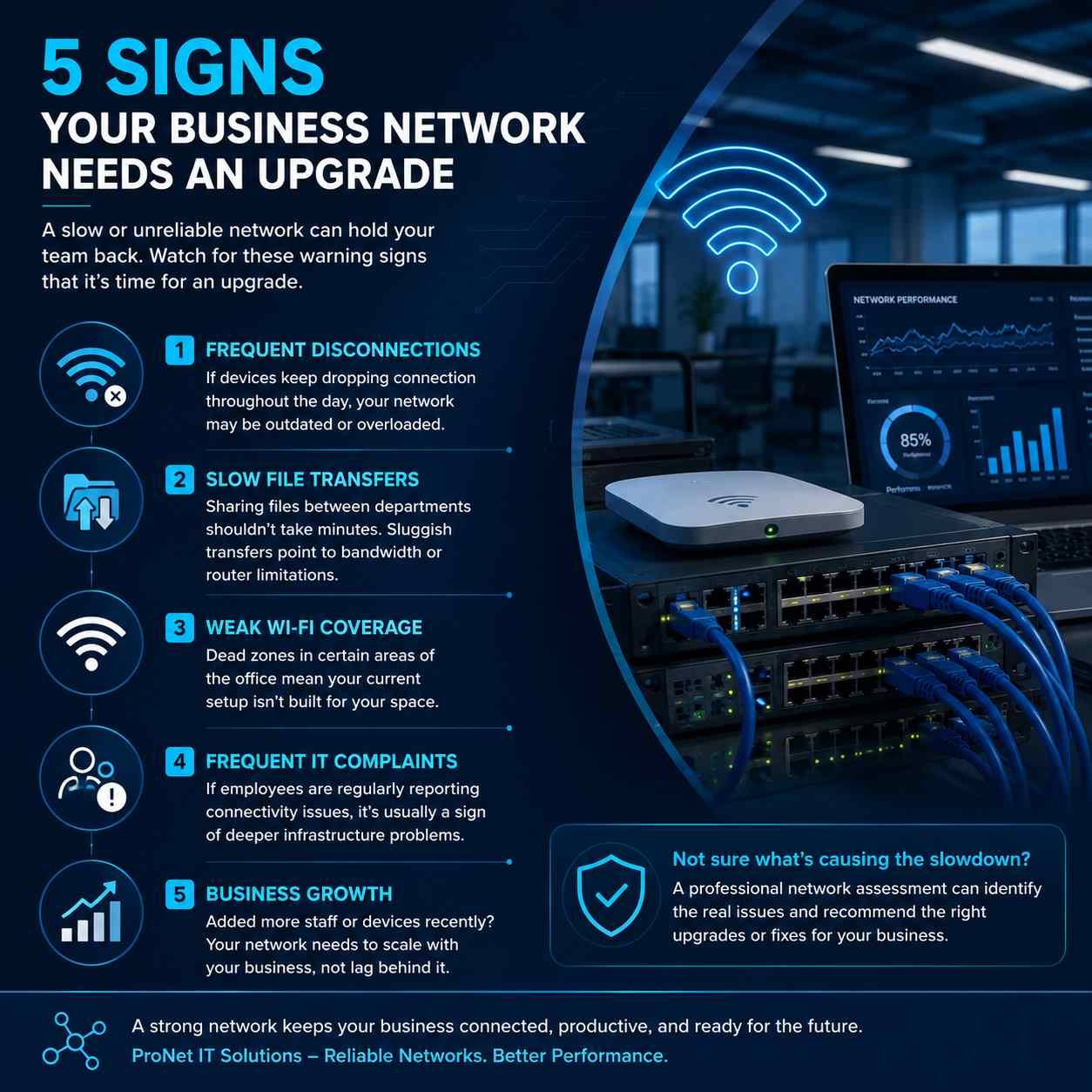
5 Signs Your Business Network Needs an Upgrade

A network that feels slow or unreliable can affect your team’s work more than you might realize. If you’re noticing any of these problems, your network may need attention.

1. Connections Keep Dropping
If computers, phones, or other devices regularly lose their connection, your router, switches, access points, or network configuration may be struggling to keep up.

2. Files Take Too Long to Move
Large files should move between systems without bringing your team to a standstill. Slow transfers can be caused by limited bandwidth, older networking equipment, or configuration issues.

3. Wi-Fi Doesn’t Reach Everywhere
If certain rooms or work areas have weak signals or no reliable Wi-Fi at all, your current wireless setup may not be suitable for the size and layout of your workplace.

4. Your Team Keeps Reporting Network Problems
When employees repeatedly complain about slow internet, dropped connections, or difficulty accessing shared resources, the problem may be bigger than an occasional technical glitch.

5. Your Business Has Grown
More employees, computers, phones, cameras, printers, and other connected devices put additional demand on your network. A setup that worked well for a small team may not perform the same way as your business expands.

Is It Time for a Network Upgrade?

Before replacing everything, it’s worth finding out what’s actually causing the problem. A professional network assessment can help identify weak points and determine whether you need a complete upgrade or simply a few targeted improvements.

ProNet IT Solutions can help you assess, improve, and maintain a network that keeps your business connected.

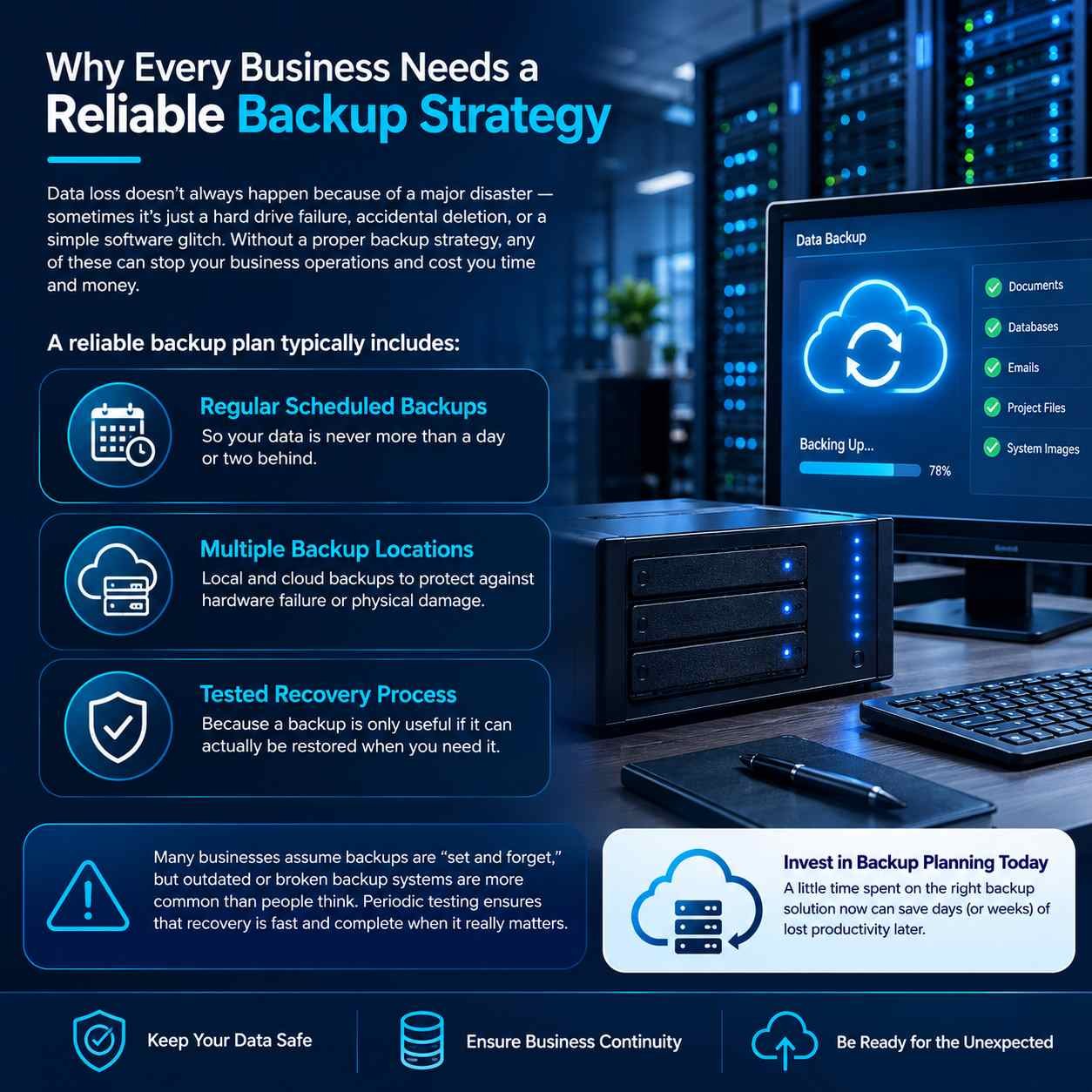
Why Every Business Needs a Reliable Backup Strategy

Why Every Business Needs a Reliable Backup Strategy

Why Every Business Needs a Reliable Backup Strategy

Your business data can disappear for many reasons. A failed hard drive, an accidentally deleted file, a damaged computer, or even a software problem can leave you without access to information you rely on every day.

That is why having a proper backup plan is more than just copying files. It should give your business a dependable way to protect its data and get back to work when something goes wrong.

What Should a Good Backup Plan Include?

1. Automatic & Regular Backups
Backups should happen on a schedule rather than depending on someone to remember them. Regular copies help keep the amount of potentially lost data as small as possible.

2. More Than One Backup Location
Keeping every copy in the same place creates unnecessary risk. Using a combination of local storage and secure cloud or off-site backups provides another layer of protection if equipment is damaged or unavailable.

3. Recovery That Has Been Tested
Simply seeing “backup completed” doesn’t mean your data can definitely be recovered. Regular restore tests help confirm that your files are actually usable when you need them.

Don’t Assume Your Backups Are Working

One of the easiest mistakes to make is setting up a backup system and then never checking it again. Storage can fill up, software can stop running, credentials can expire, or backups can fail without anyone noticing.

A quick periodic review and recovery test can reveal these problems before an actual emergency occurs.

Protect Your Business Before You Need To

A good backup strategy can turn a major data-loss incident into a manageable recovery. Spending time on the right backup setup today can help prevent long periods of downtime tomorrow.

ProNet IT Solutions can help you plan, configure, monitor, and test a backup solution that fits the way your business works.

CCTV Installation: What to Know Before You Install

CCTV Installation: What to Know Before You Install

CCTV Installation: What to Know Before You Install

A CCTV system is only useful when it is planned around the actual needs of your business. Simply installing cameras without considering their position, image quality, storage, and access can leave important areas unprotected or result in footage that isn’t useful when you need it.

1. Plan Your Camera Coverage
Start by identifying the areas that matter most, such as entrances, reception desks, cash handling points, storage rooms, corridors, and parking areas. A proper site assessment helps determine the right camera positions and reduces unwanted blind spots.

2. Choose the Right Camera Quality
Not every location needs the same level of detail. Areas where you may need to recognize faces, vehicles, or other important details should have cameras with suitable resolution and features.

3. Decide How Long to Keep Footage
Your storage requirements depend on the number of cameras, recording quality, and how many days of footage you want to retain. Planning this before installation helps avoid running out of storage later.

4. Consider Remote Monitoring
Modern CCTV systems can allow authorized users to view live cameras and recordings from a phone, tablet, or computer. This can be especially useful when you’re away from the office or managing multiple locations.

5. Think About Maintenance and Reliability
A CCTV system needs more than installation. Reliable equipment, proper configuration, regular checks, and professional support can help keep your cameras and recordings working when they matter most.

Security That Gives You Confidence

A well-designed CCTV system does more than record what’s happening. It helps you monitor your workplace, protect important areas, and have greater peace of mind knowing your business is being watched around the clock.

ProNet IT Solutions can help you plan, install, configure, and maintain a CCTV solution based on your business’s actual requirements.